> ## Documentation Index
> Fetch the complete documentation index at: https://docs.buildbetter.ai/llms.txt
> Use this file to discover all available pages before exploring further.
# Bot Recording Rules
> Learn how to configure bot recording rules to automatically disable recording for specific meetings.
You can create rules to automatically prevent or allow the BuildBetter bot to record certain meetings. These rules can be based on the event's title, description, attendees, or attendee email domains.
## How Recording Rules Work
When a new calendar event is created or updated, BuildBetter checks your recording rules. If an event matches any of your rules, the bot will be disabled for that meeting, and it will not be recorded.
## Configuring Recording Rules
You can manage your recording rules in your organization's settings.
### Rule Types
There are four types of rules you can create:
Disable recording based on the email address of an attendee. You can specify an exact email address.
Match meetings based on attendee email domains. You can block recording for certain domains or require at least one matching domain before recording.
Disable recording if the event title contains specific keywords.
Disable recording if the event description contains specific keywords.
### Creating a Rule
1. Navigate to **Settings** > **Organization** > **Bot Recording Rules**.
2. Click **Add Rule**.
3. Select the rule type: **Attendee's Email**, **Attendee Email Domain**, **Event Title**, or **Event Description**.
4. For attendee email and domain rules, choose whether the match should block recording or be required before recording.
5. Enter the text to match. For email rules, this must be a valid email address. For title and description rules, this is the keyword to search for.
6. Click **Add Rule** to save.
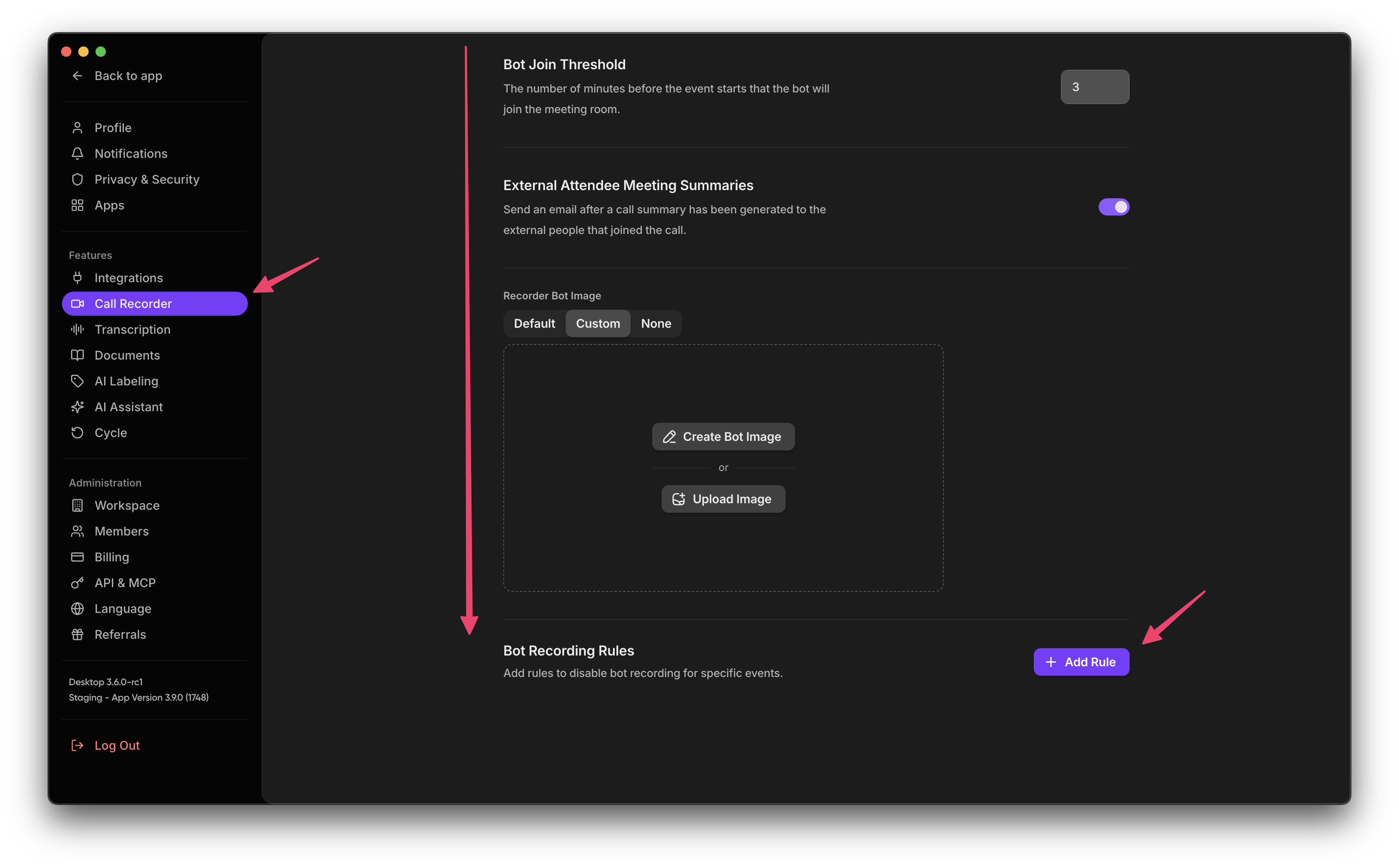 Once a rule is added, it will be applied to all new and updated calendar events.
### Removing a Rule
To remove a rule, simply click the **Remove** button next to the rule in the list.
## Common Use Cases
Here are a few examples of how you can use recording rules to manage your meetings:
### Disable Recording for All Internal Meetings
To prevent the bot from recording any internal meetings, you can create a rule based on your company's email domain.
* **Type:** Attendee's Email
* **Comparison:** is not
* **Text:** `yourcompany.com`
This rule tells BuildBetter to only record meetings where at least one attendee has an email address that does **not** end in `yourcompany.com`.
### Require an External Domain Before Recording
To record only meetings that include at least one customer domain:
* **Type:** Attendee Email Domain
* **Behavior:** Require at least one matching domain
* **Text:** `customer.com`
### Disable Recording for Specific External Meetings
If you have a partner or client with whom you never want to record meetings, you can add a rule for their email domain.
* **Type:** Attendee's Email
* **Comparison:** is
* **Text:** `partnercompany.com`
This will disable recording for any meeting that includes an attendee with a `partnercompany.com` email address.
### Disable Recording for Sensitive Topics
If you frequently discuss sensitive information that shouldn't be recorded, you can create a rule based on keywords in the event title or description.
* **Type:** Event Title
* **Comparison:** contains
* **Text:** `Confidential`
You could create similar rules for "Private," "Legal," or any other term that indicates a sensitive meeting.
## Disabling the Bot for a Single Meeting
In addition to creating rules, you can manually disable the bot for any single meeting directly from your calendar or the BuildBetter web app.
For more information on manually controlling the bot, see the [Meeting Assistant](/pages/Calls%20&%20Recordings/meeting-assistant.mdx) documentation.
Once a rule is added, it will be applied to all new and updated calendar events.
### Removing a Rule
To remove a rule, simply click the **Remove** button next to the rule in the list.
## Common Use Cases
Here are a few examples of how you can use recording rules to manage your meetings:
### Disable Recording for All Internal Meetings
To prevent the bot from recording any internal meetings, you can create a rule based on your company's email domain.
* **Type:** Attendee's Email
* **Comparison:** is not
* **Text:** `yourcompany.com`
This rule tells BuildBetter to only record meetings where at least one attendee has an email address that does **not** end in `yourcompany.com`.
### Require an External Domain Before Recording
To record only meetings that include at least one customer domain:
* **Type:** Attendee Email Domain
* **Behavior:** Require at least one matching domain
* **Text:** `customer.com`
### Disable Recording for Specific External Meetings
If you have a partner or client with whom you never want to record meetings, you can add a rule for their email domain.
* **Type:** Attendee's Email
* **Comparison:** is
* **Text:** `partnercompany.com`
This will disable recording for any meeting that includes an attendee with a `partnercompany.com` email address.
### Disable Recording for Sensitive Topics
If you frequently discuss sensitive information that shouldn't be recorded, you can create a rule based on keywords in the event title or description.
* **Type:** Event Title
* **Comparison:** contains
* **Text:** `Confidential`
You could create similar rules for "Private," "Legal," or any other term that indicates a sensitive meeting.
## Disabling the Bot for a Single Meeting
In addition to creating rules, you can manually disable the bot for any single meeting directly from your calendar or the BuildBetter web app.
For more information on manually controlling the bot, see the [Meeting Assistant](/pages/Calls%20&%20Recordings/meeting-assistant.mdx) documentation.