> ## Documentation Index
> Fetch the complete documentation index at: https://docs.buildbetter.ai/llms.txt
> Use this file to discover all available pages before exploring further.
# Upcoming Calls
> View and manage your scheduled meetings where BuildBetter can record
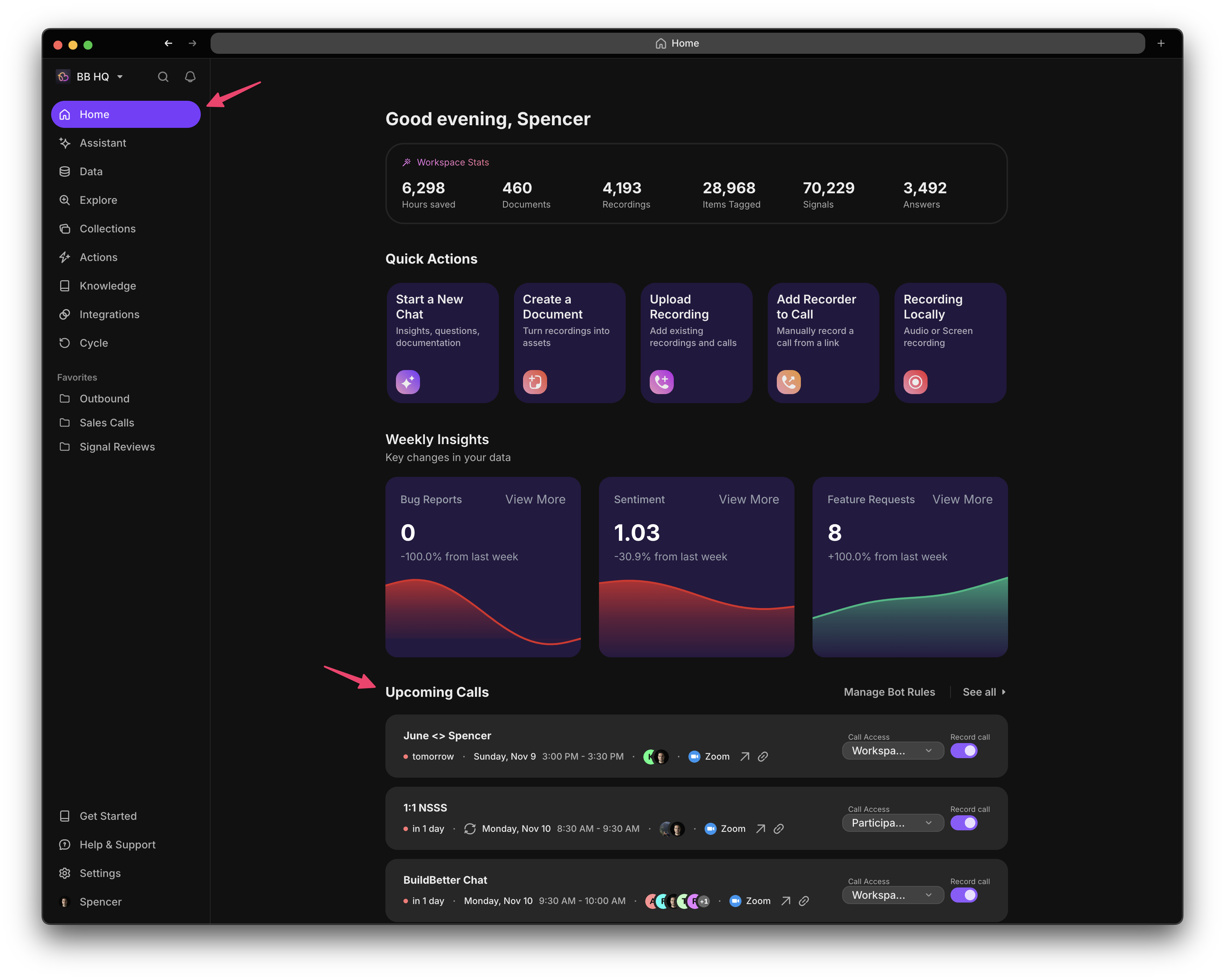
The Upcoming Calls section on your dashboard provides a comprehensive view of all scheduled meetings where BuildBetter's recording bot can potentially join. This gives you full visibility and control over what will be recorded.
## Overview
Your upcoming calls display shows:
* All calendar-synced meetings for the next 2-3 weeks
* Current bot join status for each meeting
* Quick actions to manage recording preferences
* Meeting details and participants
* Weekly calendar navigation with date jumping and detailed event popovers
 See calls organized in a weekly calendar with visual indicators for recording status
Chronological list with detailed information and bulk management options
## Call Information
Each upcoming call displays:
* **Title**: Meeting name from your calendar
* **Time**: Date, time, and duration
* **Platform**: Zoom, Teams, Meet, or Webex
* **Participants**: Attendee list and count
* **Meeting links**: Join or copy supported meeting links
* **Recurrence**: For recurring meetings
* **Will Record**: Bot will join automatically
* **Won't Record**: Bot will skip this meeting
* **Manual**: Requires manual action to join
* **Pending**: Awaiting rule evaluation
* **Workspace**: Recording will be visible to all members
* **Private**: Only you can access the recording
* **Custom**: Specific sharing settings applied
* **Access settings**: Review who will be able to open the recording
## Weekly Calendar View
Use the weekly calendar to:
* Browse upcoming calls by date
* Jump between weeks
* Open event details without leaving the calendar
* Review participants, meeting links, recording status, and access settings
If no calendar is connected, BuildBetter shows a dedicated prompt to connect one from Settings.
## Managing Individual Calls
### Before the Meeting
For each upcoming call, you can:
Click the recording toggle to enable/disable bot joining for specific meetings
Choose whether the recording should be private or shared with your workspace
Pre-add tags, notes, or custom labels that will be attached to the recording
See who will be in the meeting and their BuildBetter profiles if available
Changes to recurring meetings affect all future instances. To modify a single occurrence, use the "This meeting only" option.
### Quick Actions
Hover over any upcoming call to access:
* **Skip This Call**: Prevent bot from joining this specific instance
* **Always Record With \[Person]**: Create a rule to record all meetings with specific attendees
* **View Series**: See all instances of a recurring meeting
* **Copy Join Link**: Get the meeting URL for manual joining
## Filtering and Search
Find specific meetings quickly:
* **By Status**: Will record, won't record, manual
* **By Platform**: Zoom, Teams, Meet, Webex
* **By Date**: Today, this week, custom range
* **By Attendee**: Specific participants
* Search by meeting title
* Search by participant name
* Search by meeting ID
* Search by keywords in description
## Bulk Management
Select multiple meetings to:
* Enable/disable recording for multiple calls
* Set privacy settings in bulk
* Add tags to multiple meetings
* Export meeting list
Use Shift+Click to select a range of meetings or Cmd/Ctrl+Click for individual selection.
## Understanding Bot Status
See calls organized in a weekly calendar with visual indicators for recording status
Chronological list with detailed information and bulk management options
## Call Information
Each upcoming call displays:
* **Title**: Meeting name from your calendar
* **Time**: Date, time, and duration
* **Platform**: Zoom, Teams, Meet, or Webex
* **Participants**: Attendee list and count
* **Meeting links**: Join or copy supported meeting links
* **Recurrence**: For recurring meetings
* **Will Record**: Bot will join automatically
* **Won't Record**: Bot will skip this meeting
* **Manual**: Requires manual action to join
* **Pending**: Awaiting rule evaluation
* **Workspace**: Recording will be visible to all members
* **Private**: Only you can access the recording
* **Custom**: Specific sharing settings applied
* **Access settings**: Review who will be able to open the recording
## Weekly Calendar View
Use the weekly calendar to:
* Browse upcoming calls by date
* Jump between weeks
* Open event details without leaving the calendar
* Review participants, meeting links, recording status, and access settings
If no calendar is connected, BuildBetter shows a dedicated prompt to connect one from Settings.
## Managing Individual Calls
### Before the Meeting
For each upcoming call, you can:
Click the recording toggle to enable/disable bot joining for specific meetings
Choose whether the recording should be private or shared with your workspace
Pre-add tags, notes, or custom labels that will be attached to the recording
See who will be in the meeting and their BuildBetter profiles if available
Changes to recurring meetings affect all future instances. To modify a single occurrence, use the "This meeting only" option.
### Quick Actions
Hover over any upcoming call to access:
* **Skip This Call**: Prevent bot from joining this specific instance
* **Always Record With \[Person]**: Create a rule to record all meetings with specific attendees
* **View Series**: See all instances of a recurring meeting
* **Copy Join Link**: Get the meeting URL for manual joining
## Filtering and Search
Find specific meetings quickly:
* **By Status**: Will record, won't record, manual
* **By Platform**: Zoom, Teams, Meet, Webex
* **By Date**: Today, this week, custom range
* **By Attendee**: Specific participants
* Search by meeting title
* Search by participant name
* Search by meeting ID
* Search by keywords in description
## Bulk Management
Select multiple meetings to:
* Enable/disable recording for multiple calls
* Set privacy settings in bulk
* Add tags to multiple meetings
* Export meeting list
Use Shift+Click to select a range of meetings or Cmd/Ctrl+Click for individual selection.
## Understanding Bot Status
Status
What It Means
Action Needed
🟢 Will Join
Bot will automatically join based on your rules
None - recording will happen automatically
🔴 Won't Join
Meeting matches skip rules or recording is disabled
Toggle on if you want to record
🟡 Manual
No automatic rules apply
Decide whether to record
⚪ Pending
Awaiting calendar sync or rule processing
Wait for update or refresh
## Calendar Integration
Upcoming calls are populated from:
* **Google Calendar**: Personal and shared calendars
* **Outlook/Office 365**: All accessible calendars
* **Manual Entries**: Meetings added directly in BuildBetter
Only meetings with valid conference links (Zoom, Teams, Meet, Webex) will appear in upcoming calls.
## Best Practices
**Review Weekly**: Check your upcoming calls each Monday to ensure important meetings will be recorded
**Set Defaults**: Configure [bot recording rules](/pages/Calls%20&%20Recordings/bot-recording-rules) to automate decisions
**Privacy First**: Mark sensitive meetings as private before they occur
**Participant Notice**: Ensure meeting invites mention that calls may be recorded
## Troubleshooting
**Possible Causes:**
* Calendar not synced
* No conference link in invite
* Meeting is too far in future (>3 weeks)
* Calendar permissions issue
**Solutions:**
* Check calendar integration in settings
* Ensure meeting has Zoom/Teams/Meet link
* Meetings appear 3 weeks before start time
* Re-authorize calendar access
**Possible Causes:**
* Rules recently changed
* Calendar update pending
* Conflicting rules
**Solutions:**
* Refresh the page
* Check [recording rules](/pages/Calls%20&%20Recordings/bot-recording-rules)
* Look for rule conflicts in settings
**Possible Causes:**
* Meeting organized by others
* Admin controls enabled
* Platform restrictions
**Solutions:**
* Check with meeting organizer
* Verify your workspace permissions
* Review platform-specific limitations
## Related Features
Configure automatic recording rules based on keywords, participants, and more
Set up and manage calendar connections for automatic meeting detection
Configure default privacy settings for your recordings
View and access your recently recorded meetings
***
Upcoming calls refresh automatically every few minutes. You can also manually refresh by pulling down on mobile or clicking the refresh icon on desktop.