> ## Documentation Index
> Fetch the complete documentation index at: https://docs.buildbetter.ai/llms.txt
> Use this file to discover all available pages before exploring further.
# Google Calendar Integration
> Connect BuildBetter with Google Calendar for automatic meeting recording and management
Integrate BuildBetter with Google Calendar to automatically record your scheduled meetings, capture transcripts, and generate summaries without manual intervention.
## Features
* **Automatic Meeting Recording**: BuildBetter joins and records meetings from your calendar
* **Smart Scheduling**: Configure which meetings to record based on customizable rules
* **Meeting Notifications**: Pre-meeting notifications with recording details
* **Post-Meeting Summaries**: Automated email summaries after meetings
* **Attendee Management**: Track participants and automate labeling
## Setup Instructions
### Prerequisites
* An active BuildBetter account
* A Google Workspace or Gmail account
* Calendar permissions and meeting host capabilities
### Connecting Google Calendar
1. Navigate to **Settings → Integrations** in your BuildBetter dashboard
2. Select **Google Calendar** from the office integrations
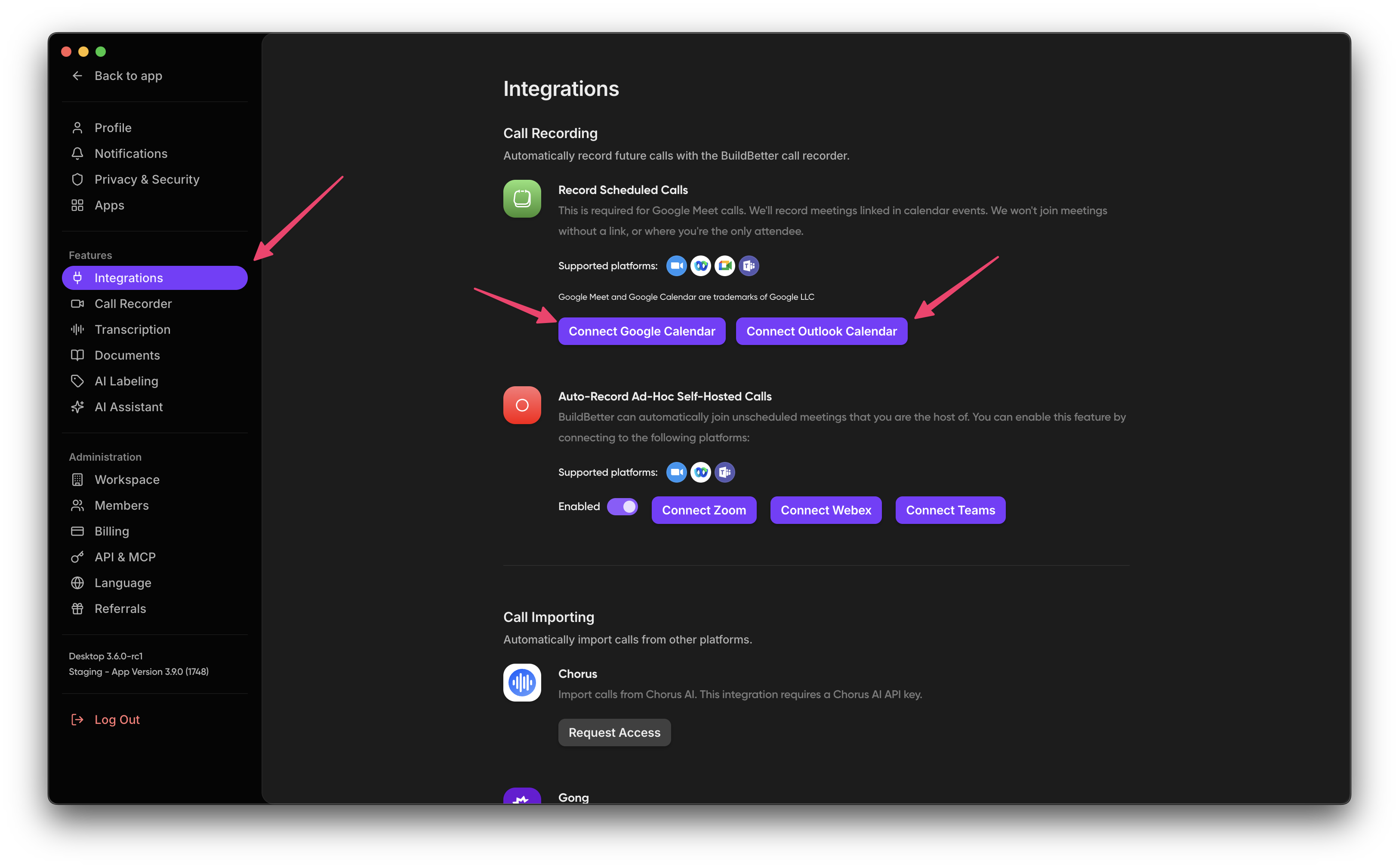 3. Click **Connect** and authorize BuildBetter access to your calendar
4. Complete the Google authentication process
5. Return to BuildBetter to finish configuration
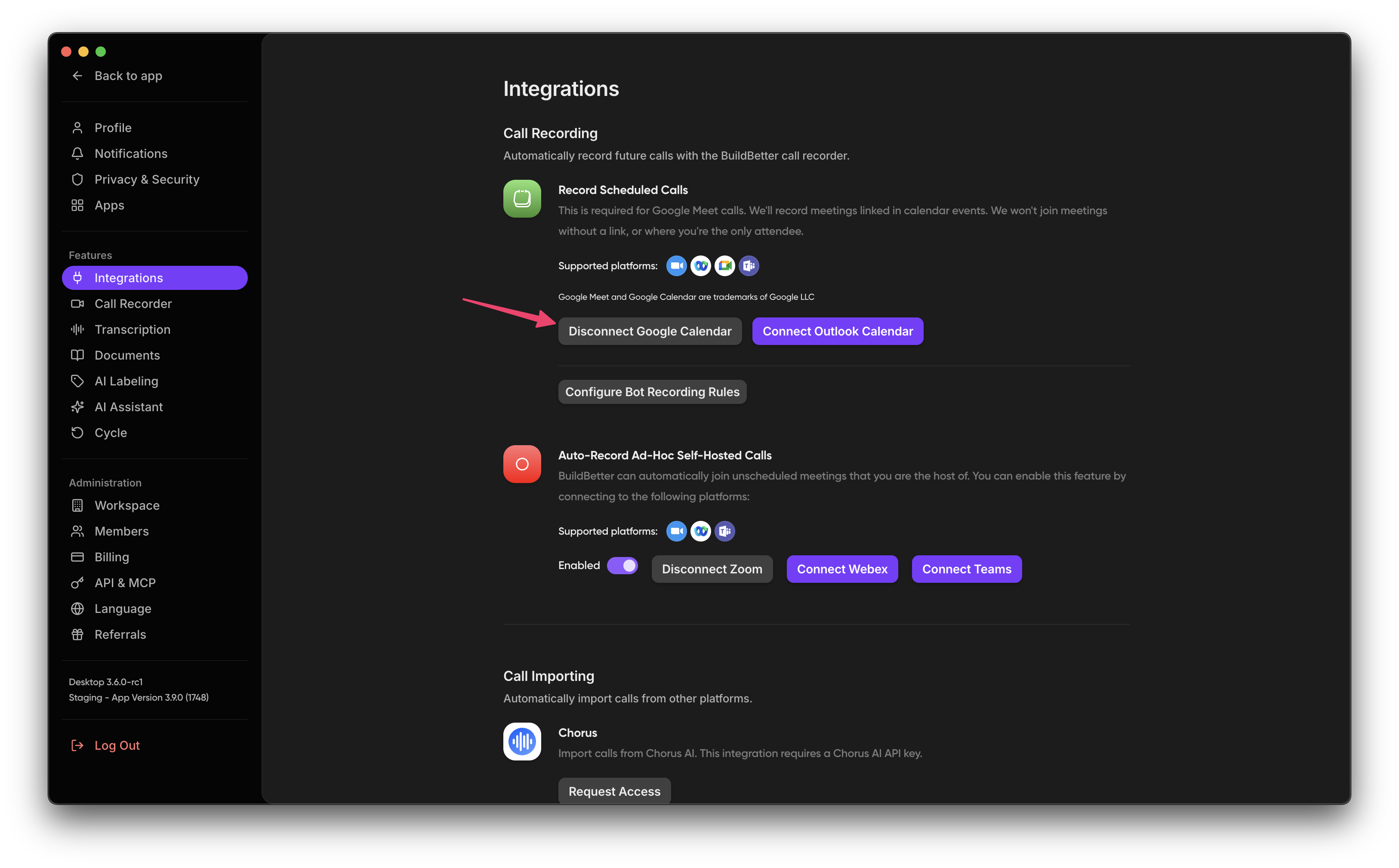
3. Click **Connect** and authorize BuildBetter access to your calendar
4. Complete the Google authentication process
5. Return to BuildBetter to finish configuration
 ### Setting Up Recording Rules
Once connected, configure your recording preferences:
1. Go to **Settings → Recording Rules**
2. Create new rules based on:
* Meeting title keywords (include/exclude)
* Attendee email domains
* Time ranges
* Calendar selection (if you have multiple)
3. Set recording visibility (participants only, workspace, public)
4. Save your recording rules
## Usage
### Upcoming Meetings
After setup, you'll see:
1. An **Upcoming** section on your BuildBetter dashboard
2. Calendar events that match your recording rules
3. Recording status (scheduled, in progress, completed)
4. Quick links to join meetings
### Managing Calendar Events
For each calendar event:
* **Change Recording Status**: Enable/disable recording for specific events
* **Manual Join**: Force BuildBetter to join a meeting immediately
* **View Details**: See attendees, description, and other calendar data
* **Privacy Controls**: Adjust who can access each recording
### Post-Meeting Actions
After a meeting ends:
1. BuildBetter processes the recording and generates a transcript
2. An AI summary is created based on the meeting type
3. Participants are automatically labeled when possible
4. Email notifications are sent to relevant participants (if enabled)
## Troubleshooting
### Bot Not Joining Meetings
* Verify calendar connection is active
* Check that your recording rules include the meeting
* Ensure you have proper permissions as the meeting organizer
* Verify the meeting platform is supported (Google Meet, Zoom, MS Teams)
### Calendar Sync Issues
* Reconnect your Google Calendar if synchronization stops
* Check for Google Workspace restrictions on third-party apps
* Verify you haven't exceeded API limits
### Privacy Considerations
* Customize pre-meeting notification emails to inform participants
* Adjust recording visibility settings to match your privacy requirements
* Review attendee consent settings for compliance with recording laws
## Limitations
* Personal Google Accounts: Limited functionality compared to Google Workspace
* Multiple Calendar Support: May require additional setup for multiple calendars
* Meeting Platforms: Must be Google Meet, Zoom, or Microsoft Teams
### Setting Up Recording Rules
Once connected, configure your recording preferences:
1. Go to **Settings → Recording Rules**
2. Create new rules based on:
* Meeting title keywords (include/exclude)
* Attendee email domains
* Time ranges
* Calendar selection (if you have multiple)
3. Set recording visibility (participants only, workspace, public)
4. Save your recording rules
## Usage
### Upcoming Meetings
After setup, you'll see:
1. An **Upcoming** section on your BuildBetter dashboard
2. Calendar events that match your recording rules
3. Recording status (scheduled, in progress, completed)
4. Quick links to join meetings
### Managing Calendar Events
For each calendar event:
* **Change Recording Status**: Enable/disable recording for specific events
* **Manual Join**: Force BuildBetter to join a meeting immediately
* **View Details**: See attendees, description, and other calendar data
* **Privacy Controls**: Adjust who can access each recording
### Post-Meeting Actions
After a meeting ends:
1. BuildBetter processes the recording and generates a transcript
2. An AI summary is created based on the meeting type
3. Participants are automatically labeled when possible
4. Email notifications are sent to relevant participants (if enabled)
## Troubleshooting
### Bot Not Joining Meetings
* Verify calendar connection is active
* Check that your recording rules include the meeting
* Ensure you have proper permissions as the meeting organizer
* Verify the meeting platform is supported (Google Meet, Zoom, MS Teams)
### Calendar Sync Issues
* Reconnect your Google Calendar if synchronization stops
* Check for Google Workspace restrictions on third-party apps
* Verify you haven't exceeded API limits
### Privacy Considerations
* Customize pre-meeting notification emails to inform participants
* Adjust recording visibility settings to match your privacy requirements
* Review attendee consent settings for compliance with recording laws
## Limitations
* Personal Google Accounts: Limited functionality compared to Google Workspace
* Multiple Calendar Support: May require additional setup for multiple calendars
* Meeting Platforms: Must be Google Meet, Zoom, or Microsoft Teams